
Kuvaus
Try it out on your free dummy site: Click here => https://demo.tastewp.com/import-users-from-csv-with-meta
Import, export and migrate WordPress users and WooCommerce customers from a CSV file. Bulk-create or update thousands of users in seconds, schedule automatic recurring imports from a local file or URL, and carry over roles, passwords and any custom meta field. Works with WooCommerce, BuddyPress, Advanced Custom Fields, Paid Membership Pro, WooCommerce Memberships, WooCommerce Subscriptions and many more.
New in 3.0: a step by step import assistant
- Your file, your column names. Upload any CSV and match its columns with WordPress and WooCommerce fields. Headers like ”Correo electrónico”, ”E-mail”, ”Nombre”, ”Prénom” or ”Telefon” are recognised automatically in English, Spanish, French, German, Italian and Portuguese, and the email column is detected by its content
- See what will happen before it happens. The preview tells you how many users will be created, updated or skipped, shows every row with an error and why, and warns you before any user is deleted
- Download the rows with errors as a CSV, fix them and import them again
- Start from a template: download a CSV with example data for users or WooCommerce customers, fill it in and import it
- Files saved from Excel just work: the encoding (UTF-8 or Windows-1252) and the delimiter are detected for you
- No username column? Use the email as username or generate one
-
The classic screen is still one click away for those who prefer it
-
Import CSV file with users directly to your WordPress or customers into WooCommerce
- Import thousands of users or customers in only some seconds
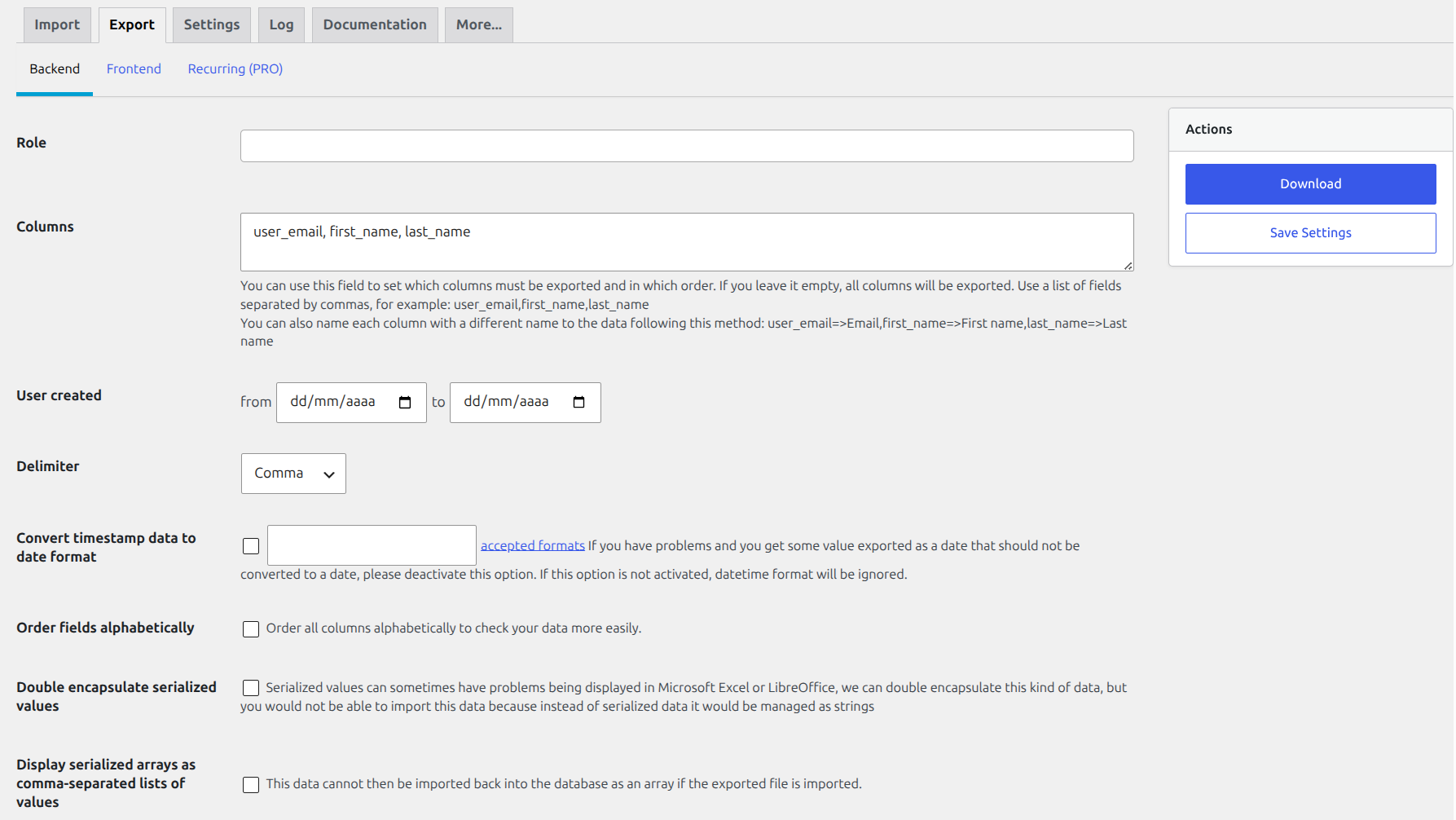
- Export users or customers to a CSV file, filtering by role or registered date
- You can also import meta-data like data from WooCommerce customers
- You can assign roles while importing.
- Send a mail to every new user, this mails can be saved as templates and are fully customizable, before sending you can test it
- You can also update users if the user is already in your WordPress
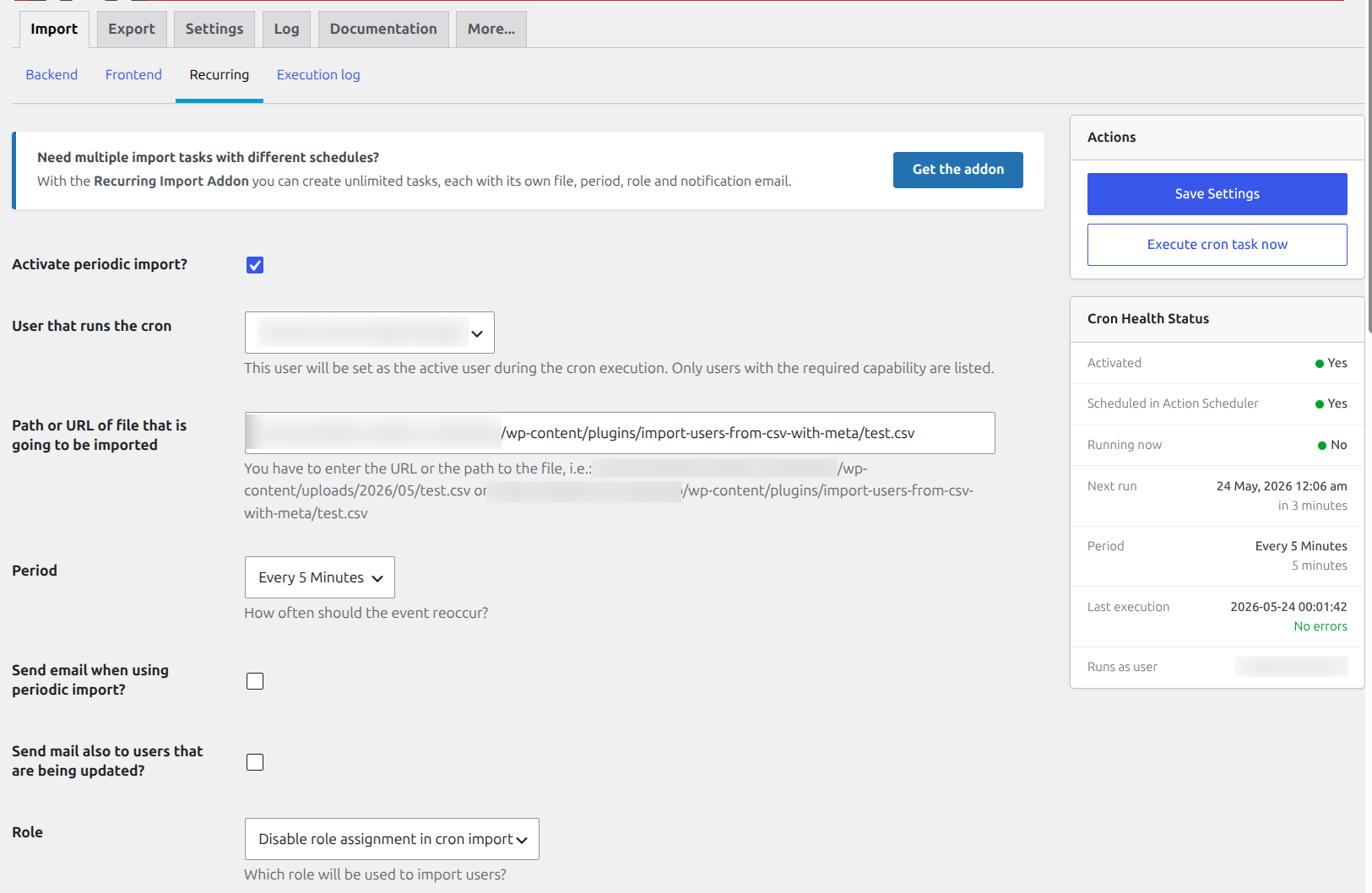
- Create a cron task to import users periodically
- Edit the metadata (you will be able to edit the metadata imported using metakeys directly in the profile of each user)
- Extend the plugin using the hooks we provide
- Compatible with WPML read the documentation to see how you can translate the front-end import and export users page and send translated email notifications to users
Moreover this plugin is compatible with many other plugins to be able to import and include them data, subscriptions, memberships, etc. Take a look:
- WooCommerce: to import the customer data
- WooCommerce Memberships: to import memberships
- WooCommerce Subscriptions: to create subscriptions associated with users while they are being imported
- BuddyPress: to import custom BuddyPress avatars, fields, groups and roles
- Advanced Custom Fields: to import data to the fields you define there
- Paid Membership Pro: to import memberships, included compatibility with PMPro version 3
- Indeed Ultimate Membership Pro: to import memberships
- Paid Member Subscriptions: to import memberships
- Allow Multiple Accounts: plugin will allow the same rules importing than this plugin
- Groups: to assign users to groups while importing
- New User Approve: you can import users and approve them or leave them waiting for approval
- Users Group: to assign users to groups while importing
- WP LMS Course: to enroll users in the courses while importing
- WP Members: to import memberships
- WP Users Group: to assign users to groups while importing
- WooCommerce Membership by RightPress: to create memberships while users are being imported
- WP Private Content Plus: To import and export the groups to which users are assigned
If you have some problem or doubt:
- Read our documentation
- Ask anything in support forum, we try to give the best support
Common use cases
- Migrate users from one WordPress site to another
- Bulk create or update WooCommerce customers from a spreadsheet
- Sync users automatically from an external CRM or ERP via CSV
- Onboard members to a membership site (Paid Membership Pro, WooCommerce Memberships)
- Periodically import subscribers or students from an external list
- Import users from the frontend using a shortcode
Premium addons
Need more? These addons extend the plugin for specific needs:
- Allow No Email: import users that do not have an email address
- File Formats: import users directly from XLSX, XLS and ODS spreadsheets, no need to convert them to CSV
- Recurring Import: unlimited scheduled import tasks, each one with its own file, period, role and notification email
- Recurring Export: schedule automatic exports of your users and customers
- Dokan: import Dokan marketplace vendors
Usage
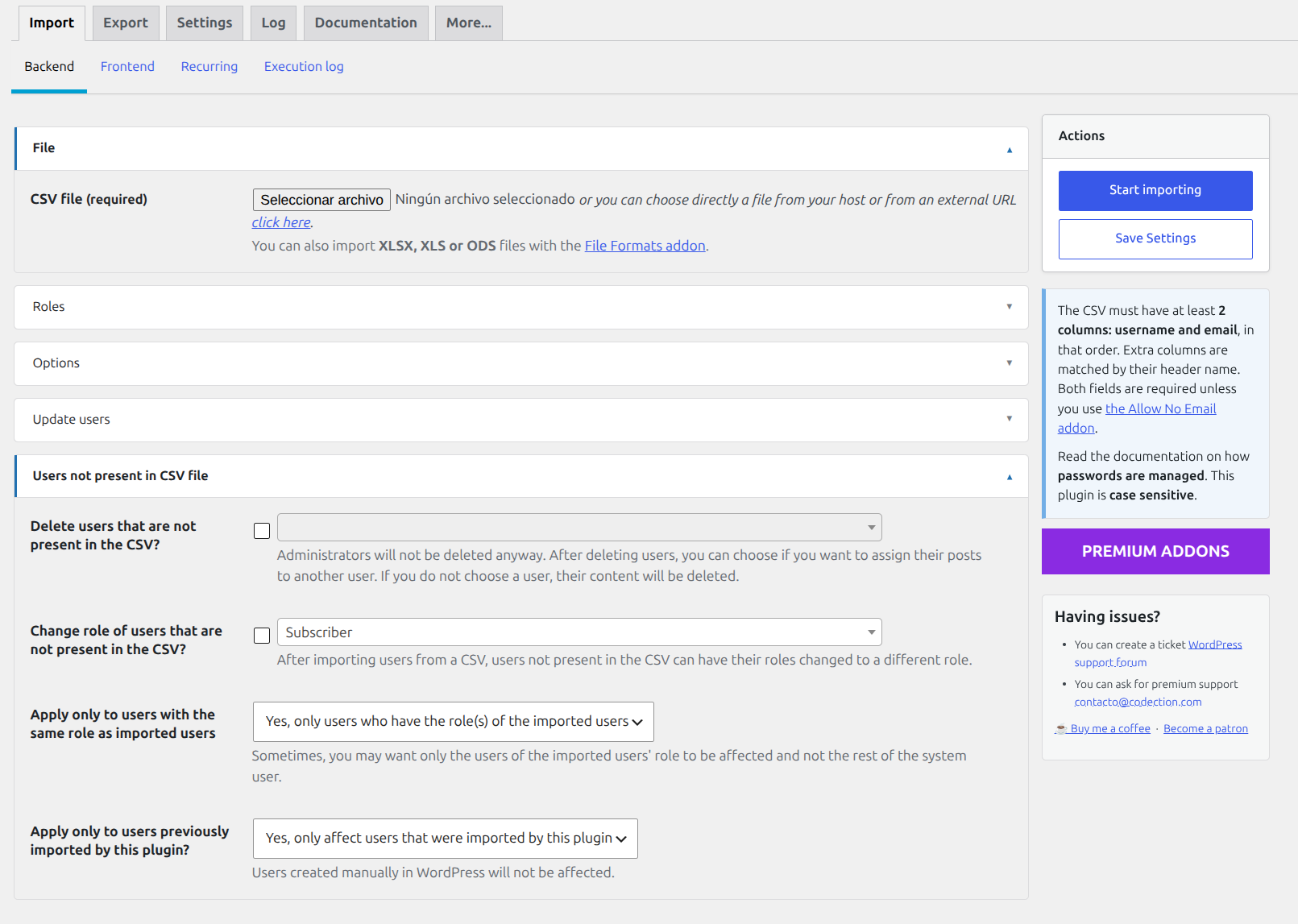
Once the plugin is installed, go to Tools > Import and export users and customers and follow the steps:
- File: choose your CSV from your computer, from a path inside your uploads folder or from a URL
- Columns: check how each column of your file will be imported
- Options: choose the default role, what to do with users who already exist and whether to send the welcome email
- Preview: see how many users will be created, updated or skipped, and the rows with errors
- Import: the users are imported in batches, so large files do not time out
CSV generation
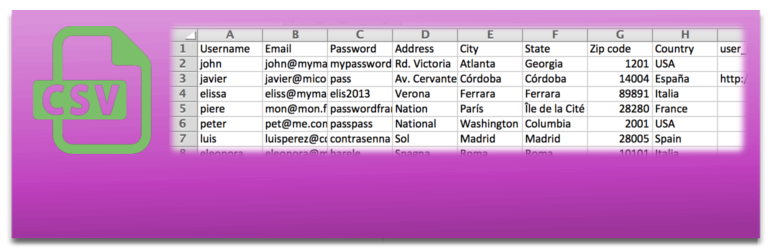
You can generate a CSV file with all the users inside it using any standard spreadsheet software like: Microsoft Excel, LibreOffice Calc, OpenOffice Calc or Gnumeric.
You have to create the file filled with information (or take it from another database) and you will only have to choose CSV file when you ”Save as…” the file. As example, a CSV file is included with the plugin.
Some considerations
Plugin will automatically detect:
- Charset and set it to UTF-8 to prevent problems with non-ASCII characters.
- It also will auto detect line-ending to prevent problems with different OS.
- Finally, it will detect the delimiter being used in CSV file
Other plugins by Codection
- RedSys Gateway for WooCommerce Pro (premium)
- Ceca Gateway for WooCommerce Pro (premium)
- RedSys Gateway for Contact Form 7 (premium)
- Ceca Gateway for Contact Form 7 (premium)
- RedSys & Bizum Gateway for Gravity Forms (premium)
- RedSys & Bizum Gateway for WPForms (premium)
- RedSys & Bizum for GiveWP (premium)
- RedSys Link Generator (premium)
- RedSys & Bizum Gateway for EDD Pro (premium)
- RedSys Gateway for WP Booking Calendar Pro (premium)
- Clean Login (free)
- Products Restricted Users for WooCommerce (free)
- First payment date for WooCommerce Subscriptions (free)
- Payment Schedule for WooCommerce Subscriptions (premium)
Kuvankaappaukset


Asennus
Installation
- Install Import and export users and customers automatically through the WordPress Dashboard or by uploading the ZIP file in the plugins directory.
- Then, after the package is uploaded and extracted, click Activate Plugin.
Now going through the points above, you should now see a new Import users from CSV menu item under Tool menu in the sidebar of the admin panel, see figure below of how it looks like.
If you get any error after following through the steps above please contact us through item support comments so we can get back to you with possible helps in installing the plugin and more.
Please read documentation before start using this plugin.
UKK
-
I get a ”too many redirects” error on my site, how can I solve it?
-
This is caused by the option that forces the users to reset their password. When it is used, each of those users is redirected to their password page on every page load until they change it, and if that destination cannot be reached (for example, because wp-admin is blocked for customers or subscribers by WooCommerce, by a membership plugin or by a security plugin) the browser ends up in a redirection loop.
Since version 2.4.12 the plugin detects this situation and gives up after 3 consecutive redirects, so the site stays usable, but you can also clear the flag for the users that are already affected: go to the plugin documentation tab and use the button that removes the force reset password metadata from all the users.
If you want to change how many redirects are allowed before the plugin gives up, use the
acui_force_reset_password_max_redirectsfilter (return 0 to disable the limit):add_filter( 'acui_force_reset_password_max_redirects', function( $max ){ return 5; } ); -
Which page are the users sent to when I force them to reset their password?
-
By default they are sent to their WordPress profile page. If WooCommerce or WP User Manager are active, they are sent to the password section of the account page of those plugins instead. You can point them anywhere else using the
acui_force_reset_password_edit_profile_urlfilter, and you can add your own exceptions (pages where the redirection must not happen) usingacui_force_reset_password_redirect_condition.= Can I import users from an Excel or LibreOffice file? =The plugin natively supports CSV files. If you need to import directly from Excel (XLSX, XLS) or LibreOffice (ODS) files without converting them first, the File Formats Addon adds support for those formats.
-
What format should my CSV file be?
-
You should fill the first two columns with the next values: Username, Email.
The next columns are totally customizable and you can use whatever you want. All rows must contains same columns. User profile will be adapted to the kind of data you have selected. If you want to disable the extra profile information, please deactivate this plugin after make the import.
-
Can I import users by their WordPress ID?
-
You can use a column called id in order to make inserts or updates of an user using the ID used by WordPress in the wp_users table. We have two different cases:
- If id doesn’t exist in your users table: WordPress core does not allow us insert it, so it will throw an error of kind: invalid_user_id
- If id exists: plugin check if username is the same, if yes, it will update the data, if not, it ignores the cell to avoid problems
-
Passwords
-
We can use a column called ”Password” to manage a string that contains user passwords. We have different options for this case:
- If you don’t create a column for passwords: passwords will be generated automatically
- If you create a column for passwords: if cell is empty, password won’t be updated; if cell has a value, it will be used
-
Serialized data
-
Plugin can import serialized data. You have to use the serialized string directly in the CSV cell in order the plugin will be able to understand it as an serialized data instead as any other string.
-
Lists
-
Plugin can import lists as an array. Use this separator: :: two colons, inside the cell in order to split the string in a list of items.
-
WordPress default profile data
-
You can use those labels if you want to set data adapted to the WordPress default user columns (the ones who use the function wp_update_user)
- user_nicename: A string that contains a URL-friendly name for the user. The default is the user’s username.
- user_url: A string containing the user’s URL for the user’s web site.
- display_name: A string that will be shown on the site. Defaults to user’s username. It is likely that you will want to change this, for both appearance and security through * obscurity (that is if you don’t use and delete the default admin user).
- nickname: The user’s nickname, defaults to the user’s username.
- first_name: The user’s first name.
- last_name: The user’s last name.
- description: A string containing content about the user.
- jabber: User’s Jabber account.
- aim: User’s AOL IM account.
- yim: User’s Yahoo IM account.
- user_registered: Using the WordPress format for this kind of data Y-m-d H:i:s.
-
Multiple imports
-
You can upload as many files as you want, but all must have the same columns. If you upload another file, the columns will change to the form of last file uploaded.
-
Export
-
You can export a file with all your users data using ”Export” tab. There you will be able to find some filters and options to prepare your export.
-
Hooks: actions and filter
-
If you want to extend this plugin or use this plugin with any other, here you have a list with all hooks available in the plugin.
-
This plugin saved me a lot of time and work. Where can I donate?
-
Thanks, donations help us to continue improving our plugins and allow us to give the best support in the forums Donate Here via PayPal.
-
I’m not sure I will be able to import all users with correct data and roles. Will you do it for me?
-
Of course! In Codection we help you to import, migrate, synchronized, update or any other operation you will need to do with your users. Contact us at contacto@codection.com for more information.
-
You can get:
- Free support in WordPress forums
- Premium support writing directly to contacto@codection.com.
-
Customizations, addons, develops…
-
Can I migrate users from another WordPress site?
-
Yes. Export users from your old site using the Export tab, then import the resulting CSV into your new site. Hashed passwords can be transferred using the user_pass column so users keep their existing passwords without needing to reset them.
-
Can I bulk create WooCommerce customers?
-
Yes. Add WooCommerce billing and shipping fields as columns in your CSV (e.g. billing_first_name, billing_email, shipping_address_1) and the plugin will populate them automatically when importing users with the customer role.
-
Can I import users with custom fields (ACF, BuddyPress, etc.)?
-
Yes. The plugin has addons for Advanced Custom Fields, BuddyPress/BuddyBoss, Paid Membership Pro, WooCommerce Memberships, WooCommerce Subscriptions and many others. Custom meta fields not covered by an addon can still be imported by using the meta key as the column header.
-
Can I import users without an email address?
-
By default WordPress requires an email for every user. If you need to import users without one, the Allow No Email Addon removes that requirement.
-
Can I update existing users without creating duplicates?
-
Yes. The plugin checks for existing users by username and email before inserting. If a match is found the user is updated instead of created. You can also control whether passwords and roles are overwritten on update.
-
Can I schedule automatic exports?
-
Scheduled exports are available via the Recurring Export Addon. It lets you configure periodic CSV exports of your users or WooCommerce customers and send them to a file path or remote destination automatically.
-
Can I schedule automatic imports?
-
Yes. The Recurring Import tab lets you configure a periodic import from a file path or URL. The plugin will fetch and process the CSV automatically at the chosen interval (hourly, daily, weekly, etc.) without any manual action.
The import runs as the user selected in ”User that runs the cron”, so it can only do what that user is allowed to do. If the settings are saved by a user who cannot edit other users (
edit_users), for example a role that has only been givencreate_usersto import users, the import always runs as that same user, whoever starts it, and the selector only offers their own account.The free version supports one recurring import task. If you need multiple simultaneous scheduled imports — each with its own file, interval, role and settings — the Recurring Import Addon removes that limitation.
-
Can I sync users from an external system or CRM?
-
Yes. Point the recurring import at a URL that your external system generates and the plugin will pull and process it on every scheduled run, keeping your WordPress users in sync automatically.
-
How can I report security bugs?
-
You can report security bugs through the Patchstack Vulnerability Disclosure Program. The Patchstack team help validate, triage and handle any security vulnerabilities. Report a security vulnerability.
Arvostelut


Avustajat & Kehittäjät
“Import and export users and customers” perustuu avoimeen lähdekoodiin. Seuraavat henkilöt ovat osallistuneet tämän lisäosan kehittämiseen.
Avustajat
“Import and export users and customers” has been translated into 9 locales. Kiitoksia kääntäjille heidän työstään.
Käännä “Import and export users and customers” omalle kielellesi.
Oletko kiinnostunut kehitystyöstä?
Browse the code, check out the SVN repository, or subscribe to the development log by RSS.
Muutosloki
3.0.0 – 2026-11-12
- New import assistant in five steps: file, columns, options, preview and import. It is the default screen for the import, and the classic screen can be used with the ”Switch to classic mode” link (the choice is saved for each user)
- Column mapping: the columns of the file can have any name and any order. Each column is matched with a WordPress field (username, email, password, names, role, website, registration date, language, user ID…), a WooCommerce billing or shipping field, a custom field with the name you choose, or it can be ignored
- Explanations under the password, password hash and role fields in the column mapping: what happens with empty cells, with new users and with existing users. A column called password whose values look like encrypted passwords is suggested as a password hash, so they are not imported as plain text passwords by mistake
- The field of each column can be searched by typing, by its name or by its internal key (for example ”city” or ”billing_city”), and the key is shown next to each field
- Automatic detection of the columns by their name in English, Spanish, French, German, Italian and Portuguese, of the email column by its values, and of the classic format with the username in the first column and the email in the second one
- If the file has no username column, the email can be used as username or a random username can be generated
- Preview of the import: number of users that will be created, updated or skipped, the rows with errors and the reason, how many users not present in the file will be deleted or have their role changed, and a warning when they will not be deleted because some rows have errors. Nothing is saved until you start the import
- The rows with errors can be downloaded as a CSV file to fix them and import them again
- Files that are not saved in UTF-8 (like the CSV files saved by Excel in Windows-1252) are converted, so accents and other special characters are no longer lost when using the assistant
- Role of new users in the assistant: if a column of the file is imported as role, the assistant says that each user gets the role of that column. If not, you choose between the default role of the site (Settings > General) and one or more roles of your choice, so users can no longer be created without any role by accident when the default role setting was empty
- The options of the import are grouped in ”Main options” (default role, users who already exist, emails and empty cells) and ”More options”, which opens automatically if the deletion or the role change of users not present in the file is active
- When the file comes from a URL or a path on the server, the assistant reminds that it can be imported automatically for free from the Recurring tab, and explains what the Recurring Import addon adds: unlimited tasks, each with its own schedule, role and rules, an email when each run finishes and a list to manage them. The same information appears after an import from a URL or a path. If the addon is already active, both places link to a new recurring import task instead
- Compatible with the File Formats addon (XLSX, XLS and ODS) and with the Allow No Email addon, which makes the email column optional
- New filters for developers: acui_wizard_active, acui_wizard_targets, acui_wizard_aliases, acui_wizard_email_required and acui_wizard_file_encoding
- Clearer choice of where the file comes from: ”Upload from your computer”, with an area where you can drag the file and that shows the accepted formats and the chosen file, or ”Use a URL or a file on this server”, with examples for a link to a CSV, Google Sheets and a file inside uploads.
- CSV templates with example data to download from the first step of the import and from the Documentation tab: basic users, WooCommerce customers (when WooCommerce is active) and an empty one with only the headers. They use example.com addresses and the roles of your site, and they open correctly in Excel. Add-ons can add their own templates with the filter acui_csv_templates
- More robust saving of the uploaded file: if it cannot be moved to the private folder inside uploads, the plugin tries to copy it and then uses a private folder inside the temporary folder of the server. If everything fails, the error shows the folders tried and the real reason given by the server (for example, a full disk quota) instead of ”The uploaded file could not be saved”
- Tools > Site Health: new section in the Info tab with the private folder, the alternative folder, the maximum upload size and the last problem saving an uploaded file (folders tried and messages from the server), and a check in the Status tab that warns when an alternative way had to be used. It can be copied and sent to the hosting provider or to the support forum
- Clear messages when the upload itself fails: file larger than the maximum upload size (with the limit and what to do), partial upload, missing temporary folder or disk write error
- Fixed the saved path or URL of the file: anything that was not a URL was turned into a broken URL (for example ”http://directly%20a%20file%20from%20your”), and paths with spaces were saved with %20 so the file could not be found. Now only values starting with http:// or https:// are saved as URLs, and broken values saved by previous versions are not shown
- The test.csv sample file included in the plugin now uses example.com addresses instead of realistic names and emails
- The styles and scripts of the plugin are now loaded with the date of each file as version, so the browser and the caches always use the latest ones after an update
- The import screen can now be used on mobile devices: the sidebar is placed below the form on small screens
- After an import that creates or updates users without errors, a message asks if you want to leave a review on WordPress.org. It can be postponed for 30 days or closed forever, and it is never shown again once you answer (filter acui_show_review_notice)
- Fixed the message about the Allow No Email addon at the end of an import, which was hidden by the styles of the plugin since version 2.5.11
2.5.14 – 2026-11-11
- Security: the files of the export in batches and the CSV files uploaded for a manual import are no longer saved in the root of the uploads folder. They are now saved in a private folder with a random name inside uploads, protected with .htaccess, web.config and index files, so they cannot be downloaded from the browser even while the process is running (reported by Ankesh Singh)
- Security: the names of these files are now random (wp_generate_password) instead of being based on uniqid(), which depends on the time
- Security: the files left behind by an export or an import that was not finished (closed tab, error in the browser…) are now removed by an hourly scheduled task after 6 hours (filter acui_private_files_max_age). The task also removes the files left in the root of the uploads folder by previous versions, and everything is removed when the plugin is deactivated
- When a new manual import starts, the file uploaded for the previous import of the same user is removed if it was not finished
- The path of the uploaded file is no longer sent to the browser during the import
- The exported file is downloaded with a name that includes the date instead of the internal random name (filter acui_export_download_filename)
- New option ”Export password hashes” in the export screen to choose if the user_pass column with the hashed passwords is included. It is checked by default, so nothing changes if you never saved it. When it is unchecked, user_pass is not exported even if it is in the Columns field. In the shortcode it is the attribute export_password_hashes=”no”, and the filter acui_export_password_hashes can be used too
2.5.13 – 2026-11-01
- Fixed the recurring import running the first batch again and again without end when the data of the previous batch was not available in the next one, which also made the cron log grow until the settings page could not be loaded. This happened mainly in sites with a persistent object cache, because the batch data was saved in transients
- The data shared between batches is now saved in a non autoloaded option of each import, which works with or without an object cache, and it is removed when the import ends
- If the data of the previous batch cannot be found, the import is stopped with an error in the log instead of starting again from the first row
- The log of each cron run is limited to 1 MB (filter acui_cron_log_max_size) and is no longer autoloaded
- Manual imports in batches of different users no longer share the same batch data
2.5.12 – 2026-10-30
- Security: saving the cron task settings now checks every permission before storing anything, so a request that is rejected can no longer leave part of its settings saved
- Security: when the cron task was configured by a user who cannot promote users, the unattended runs no longer reuse the role permission saved by a previous administrator
2.5.11 – 2026-10-29
- When some rows are skipped because they have no email, the import result now says how many and that the Allow No Email addon can import them
- Uploading an XLSX, XLS or ODS file now explains that the File Formats addon can import it, instead of only saying that the file type is not valid
- The import screen now mentions the Dokan addon when Dokan is active
- New ”Premium addons” section in the plugin description
- Links to the premium addons now include campaign parameters to know which ones are useful
- Fewer links in the plugin row of the Plugins screen: the coffee and premium support links are only in the sidebar of the import screen, and the RedSys and Ceca gateways link only appears on sites in Spanish or with a WooCommerce store based in Spain
- The Import link in the Plugins screen is only shown to users who can import, and the Import and Export links no longer change the order of the other links of the row
- Fixed a malformed jQuery selector in the users option of Tools > Export
2.5.10 – 2026-10-29
- Security fix (path traversal and file deletion): the batch importer trusted the file path sent back by the browser on every step, so a user allowed to import users could point it to a CSV outside the uploads folder and read its processed rows in the import log, or have a file whose name contained ”acui-import-” deleted when the import finished. The path is now resolved and validated only on the first step and kept on the server for the rest of the batches, and only the temporary file created from an upload is deleted (reported by Rafael Honorato (honorato0))
- Security fix (SQL injection): the Paid Memberships Pro addons built the query that marks a membership as inactive by concatenating the membership_id column of the CSV. The query is now prepared with integer placeholders (reported by Rafael Honorato (honorato0))
- Security fix (stored XSS): the from and to attributes of the [export-users] shortcode were checked with a regular expression that only looked for a date anywhere in the value, and the attributes were printed in the hidden fields of the form without escaping, so a contributor could save a post with a from value like 2024-01-01″>
- Fixed the to attribute of the [export-users] shortcode, which was always ignored because of a typo (reported by dzaku)
- The [import-users] and [export-users] shortcodes now show a short notice to users who cannot create users instead of stopping the whole page with wp_die(), so a post containing them no longer breaks the page or the REST API for other visitors (reported by dzaku)
- The acui_export_shortcode_button_text filter now really changes the text of the export button
2.5.9 – 2026-10-23
- Security fix (privilege escalation): a subscriber could store profile values ending with a NUL byte so that, when a user with import and export permissions exported the users and imported the generated CSV again, the closing quote of that cell was read as escaped and the rest of the value was parsed as new columns and rows, for example a row with their own username and the administrator role. The exporter now removes NUL bytes from every cell and, on PHP 7.4 or newer, the CSV is written and read without escape character (RFC 4180), so a cell can never break out of its quotes
- Fixed the PHP 8.4+ deprecation notice about the str_getcsv() escape parameter when detecting the delimiter of the CSV file
- Extra profile fields: new ”Keep fields from previous files?” option, when it is checked the columns of a new CSV are added to the list of extra profile fields instead of replacing it, so there is no need to include empty columns for fields that the new users do not use
- Extra profile fields: every field of the list can now be removed individually, the values already saved for each user are kept
2.5.8
- New bbPress addon
- Force password change: when BuddyPress (with the Settings component) or bbPress is active, users are now sent to their front-end settings page (BuddyPress) or profile edit page (bbPress) instead of wp-admin/profile.php, so the back end can stay private. The URL can still be changed with the
acui_force_reset_password_edit_profile_urlfilter - Force password change: the flag is now removed whenever the user really changes their password, from any place (BuddyPress settings, bbPress, WooCommerce My Account, the lost password form…), not only from wp-admin/profile.php
- Force password change: the ”Please change your password” notice is also shown on the BuddyPress settings page and the bbPress profile edit page
2.5.7
- Security fix (account takeover): the 2.5.6 fix closed every role-assignment path, but a user with only
create_userscould still save the Cron tab with their own ”Path or URL of file that is going to be imported” and let the recurring import run with the privileges of an administrator. The scheduled run and ”Run now” without session switched to the user selected in ”User that runs the cron” (or to the first administrator when none was selected), so every per-user check in the importer passed: a CSV row with an existing administrator’s username and a password reset that account’s password, and the administrator running the cron could be taken over by matching its email and adding auser_emailcolumn. The Cron tab now records who saved it, and when that user cannotedit_usersthe import always runs as that same user (the scheduled run, ”Run now” and ”Run now” without session), and the ”User that runs the cron” selector only offers their own account. ”Run now” without session also takes the role-assignment decision from the user who configured the task instead of from the user who clicks the button
2.5.6
- Security fix (privilege escalation hardening): a user with only
create_userscould still change other users’ roles withoutpromote_users. Saving the Cron tab now requirespromote_usersto set ”Update roles for existing users?” to anything other than ”No” or to enable ”Change role of users that are not present in the CSV” (until now only the target role was checked, so the option could be enabled while keeping a previously stored role). The importer also no longer removes the existing roles of updated users when the user running the import cannot assign roles, which previously left them with no role when no role was being assigned
2.5.5
- The ”Update roles for existing users?” option in the Cron import tab is now a selector with the same three choices as the manual importer: ”No”, ”Yes, update and override existing roles” and ”Yes, add new roles and do not override existing ones”. Until now it was a checkbox that could only override the existing roles, so recurring imports had no way to add the roles from the CSV while keeping the ones users already had. Existing settings are kept: a checked box is read as ”Yes, update and override existing roles” and an unchecked one as ”No”
- Fixed ”Yes, add new roles and do not override existing ones” still replacing the roles of existing users on multisite when the row had no role to assign (no
rolecolumn and role assignment disabled): the user was re-added to the current site as Subscriber, which removed the roles they already had there. Existing members of the site now keep their roles in that case, and only users that are not yet members of the site are added as Subscriber
2.5.4
- Security fix (privilege escalation): batched imports (both the manual ”Import” tab, which runs in batches once the file is large enough, and the recurring Cron import) resumed the next batch with
SplFileObject::seek(), which counts physical lines in the file, while the resume position handed between batches was a count of CSV records. Any exported column whose value can contain a newline — for example the Biographical Info profile field, which is editable by every role and stored verbatim by WordPress core — could make those two counts diverge once such a value was present before the batch boundary. When they diverged, the next batch could resume in the middle of an open quoted field, and the remaining lines that a user had put inside that one cell were then parsed as top-level CSV records in their own right, under the importing administrator’s own role/password-assignment capabilities. The resume position is now the exact byte offset (ftell()/fseek()) at which the last fully parsed CSV record ended, so a batch can only ever resume at a genuine record boundary
2.5.2
- Security fix (privilege escalation): the role-assignment guards in the importer honoured a
caller_can_promote_usersvalue taken straight from the submitted form data instead of checking the current user’s capability. That value is only legitimate on the Action Scheduler cron path, where it is derived from a capability at schedule time; on every request-driven import path (the manual backend importer and the AJAX batch import action the plugin UI uses) the form data is the raw request, so a user with onlycreate_userscould addcaller_can_promote_users=1to the request themselves and get theadministratorrole applied, including to their own account. The pre-recorded decision is now only trusted on the cron path; every request-driven path re-derives it from the current user’s own capabilities (reported by yzx001) - Security fix (privilege escalation): the front-end shortcode importer’s ”change role of users that are not present in the CSV” feature read the
acui_frontend_change_role_not_present/acui_frontend_change_role_not_present_roleoptions with no capability check of its own, and those options could be set by anyone able to reach the settings screen, which is gated only oncreate_users. A user with onlycreate_userscould point the option atadministratorand then run the front-end importer to promote every existing editable-role user omitted from the CSV to administrator. Saving those two options now requirespromote_users, matching the equivalent Cron tab option, and the front-end import path now also requirespromote_usersbefore honouring the option at run time (reported by BINESH MADHARAPU)
2.5.3
- Fixed the
[export-users]shortcode’scolumnsattribute whitelist (added in 2.5.1 to allow thekey=>Labelrenaming syntax) still stripping the whole attribute to empty when the custom label contained accented or other non-ASCII letters (for examplecolumns="first_name=>Prénom"), since the whitelist only matched plain ASCII letters
2.5.1
- Fixed the
[export-users]shortcode dropping thecolumnsattribute when it used thekey=>Labelrenaming syntax (for examplecolumns="user_email=>Email,first_name=>First name"), which caused all columns to be exported instead of just the selected ones. The=and>characters were not part of the shortcode attribute’s whitelist and made it get sanitized down to an empty value
2.5
- Security hardening: exporting users is now gated by its own
acui_export_capabilityfilter (defaultedit_users) instead of sharing theacui_capabilityfilter used by import. Previously, any site that loweredacui_capabilityto give a role import-only access (for example, toadd_users) was also handing that same role access to the Export tab and its download/save endpoints, since both checks resolved to the exact same filter call with no way to tell them apart. The Export tab, its nav link, the plugin list ”Export” action link and the export AJAX/download handlers now check the new filter independently, so an import-only role stays import-only unless the new filter is explicitly overridden - The ”Update existing users?” section on the Import tab now hides the ”Update emails?”, ”Update roles for existing users?” and ”Update passwords for existing users?” fields when ”Update existing users?” is set to ”No”, since they have no effect in that case
2.4.18
- Security fix (privilege escalation): the CSV exporter writes fields with the NUL character as the escape character (
fputcsv(..., '"', "\0")), but the importer’sSplFileObject::fgetcsv()calls were passing only the delimiter, which silently kept PHP’s default backslash escape character. Any registered user able to save their own profile could setdisplay_nameto a value ending in a comma and a backslash (e.g.a,\) andnicknameto a value starting and ending with a comma around a role name (e.g.,administrator,q). When an administrator later used the plugin’s own Export tab and re-imported that file with ”Update existing users” and ”Update roles for existing users” both set to ”yes” — the plugin’s documented backup/migration workflow — the escape mismatch merged thedisplay_namecell into therolecolumn and split thenicknamecell, so the parsed role column for the attacker’s own row read exactlyadministrator, and the administrator’s own authorized import call applied it. The importer’sfgetcsv()calls now use the same explicit escape character as the exporter, so no combination of profile field values can shift the parsed column boundaries - Security fix (hardening): as defense in depth for the same code path, assigning the
administratorrole during an import now additionally requires thecreate_userscapability (not onlypromote_users) on the account running the import. This does not change behavior on sites using the plugin’s own default access gate, but stops a future column-shift bug — or a site that has lowered theacui_capabilityfilter to allow non-administrators to run imports — from being able to deliver anadministratorrole assignment through a CSV. Other roles present on the same row are unaffected; onlyadministratoris dropped (with a warning) whencreate_usersis missing
2.4.17
- Security fix (privilege escalation): the 2.4.16 fix only closed the literal
acui_fire_cron_no_sessionno-session action; it did not close the same gap on a genuinely unattended run of the recurring import (an Action Scheduler queue tick, with no$caller_can_promote_usersargument at all). A user with onlycreate_userscould leave the Cron tab’s default role empty (so thepromote_usersgate on that field was never tripped), point the recurring import at an attacker-controlled CSV with its ownrolecolumn set toadministrator, and activate it. On the next unattended tick, the execution user still falls back to the site’s first Administrator, and the per-row role check evaluated that substituted Administrator’s own capability rather than the capability of whoever had actually configured the task, so the CSV-suppliedadministratorrole was applied. Whether an unattended cron run may apply any role, including one carried in the CSV’s own role column, is now decided by thepromote_userscapability of the user who last saved the Cron tab settings, recorded at save time, instead of being re-derived from the (possibly substituted) execution user at run time - Security fix (privilege escalation): the manual backend import (”Import” tab) only required
create_usersto run at all, but let the request also enable ”delete users not present” and ”change role of users not present” without holdingdelete_usersorpromote_usersrespectively — the same gap that the Cron tab already had fixed in 2.4.15. Both options on the manual import now also require the matching capability
2.4.16
- Security fix (privilege escalation): the 2.4.15 fix gated the Cron tab’s stored default role and execution user, but not the ”Run now” no-session action (
acui_fire_cron_no_session) itself, nor the role that a CSV row can carry in its own role column. A user with onlycreate_userscould still save an attacker-controlled file path (not gated bypromote_users) and trigger that no-session run, which clears the current user and falls back to the site’s first Administrator; the per-row role check then saw that substituted Administrator’s capabilities instead of the actual caller’s, so a role ofadministratordelivered through the CSV itself (rather than the stored default) was still accepted. The role assignment check on every cron-triggered run, including multi-step batches, now uses the capability of the user who actually triggered the run instead of the capability of the substituted execution user
2.4.15
- Security fix (privilege escalation): saving the Cron tab settings (
acui_cron_save_settings) checked only the shared plugin nonce and, for the ”User that runs the cron” field, that the selected user held the same broad menu capability (create_usersby default) as whoever was saving. This let a user withcreate_usersbut notpromote_users(ordelete_users) select an Administrator as the execution identity, set the default role toadministrator, or enable ”delete users not present”/”change role of users not present”, and then trigger the ”Run now” no-session action, which runs the import with no logged-in user and falls back to the site’s first Administrator. Thepromote_userscheck on role assignment and the missing capability checks on user deletion and role change only saw that substituted Administrator, not the actual caller, so a delegated importer could create a new Administrator account or delete/demote existing users. The Cron tab now requirespromote_usersto set a default role, to set the ”change role of users not present” role, or to select an execution user that itself haspromote_users, and requiresdelete_usersto enable ”delete users not present” - Security fix (hardening): the same settings are also now rejected outright (instead of silently ignored) when the current user lacks the required capability, so a misconfigured attempt fails loudly rather than saving a partial, inconsistent state
2.4.14
- Improvement: the ”Path or URL of file that is going to be imported” field (manual import and Cron tab) now explains right on screen that a local path must be located inside the WordPress uploads folder, and shows the actual folder path of the site
- Improvement: added a ”Check path” button next to that field to verify, before saving or running the import, whether the entered path or URL will be accepted, and why not otherwise
- Improvement: saving the Cron settings now shows a warning notice when the configured path is not a valid local path (wrong extension, file not found, or outside the uploads folder), instead of only failing silently at the next scheduled run
- New: added the
acui_allowed_local_csv_base_dirsfilter so a developer can whitelist extra local base folders for the CSV path (e.g. a folder an external process writes to), without disabling the underlying security check added in 2.4.3 - Security fix (hardening): importing a CSV from a remote URL (manual import and Cron tab) now blocks link-local (
169.254.0.0/16, including the cloud metadata endpoint169.254.169.254) and carrier-grade NAT (100.64.0.0/10,198.18.0.0/15) hosts, and re-validates every redirect hop against the same SSRF blocklist instead of lettingdownload_url()follow redirects unchecked. This closes the same class of Server-Side Request Forgery that was already fixed for the BuddyPress/BuddyBossbp_avatarimport in 2.4.3/3.x, but that fix had not been applied to the main CSV-by-URL import path
2.4.13
- Improvement: the role errors during the import now say exactly what is wrong instead of always blaming permissions. The row is checked role by role and the message tells which single role failed and why: the role does not exist (and lists the roles that can be used), the role exists but the current user is not allowed to assign it (and lists which ones they can), or the role column is empty on that row. Before, a role that simply did not exist was reported as ”You do not have permission to assign some of the next roles” whenever the ”update roles of existing users” option was set to ”no”, because the ”role does not exist” check was skipped in that case, and both messages printed the whole list of roles of the row instead of the offending ones
- Improvement: when the CSV carries the name of the role (
Conference) instead of its slug (conference_member), the error now points to the right slug instead of only saying that the role does not exist - Fix: roles whose slug contains uppercase letters (created that way by some role editor plugins) can be imported again. The values of the
rolecolumn were lowercased but compared against the role slugs as they are stored, so those roles were always rejected as non existing or invalid - Fix:
ACUI_Helper::get_editable_roles()useswp_roles()instead of reading the$wp_rolesglobal directly, which could still be uninitialized in cron or front end imports, leaving the list of editable roles empty and …